Familiar server OS
If IT already runs Windows Server, install EAS with the GUI wizard — no separate Linux box just for the guard UI.
Windows Server · GUI installer
Install EAS on Windows Server and work in the browser: ZKTeco C3 access, cameras, interactive map. Same product as Ubuntu and Astra — separate installer and a 90-day trial key.
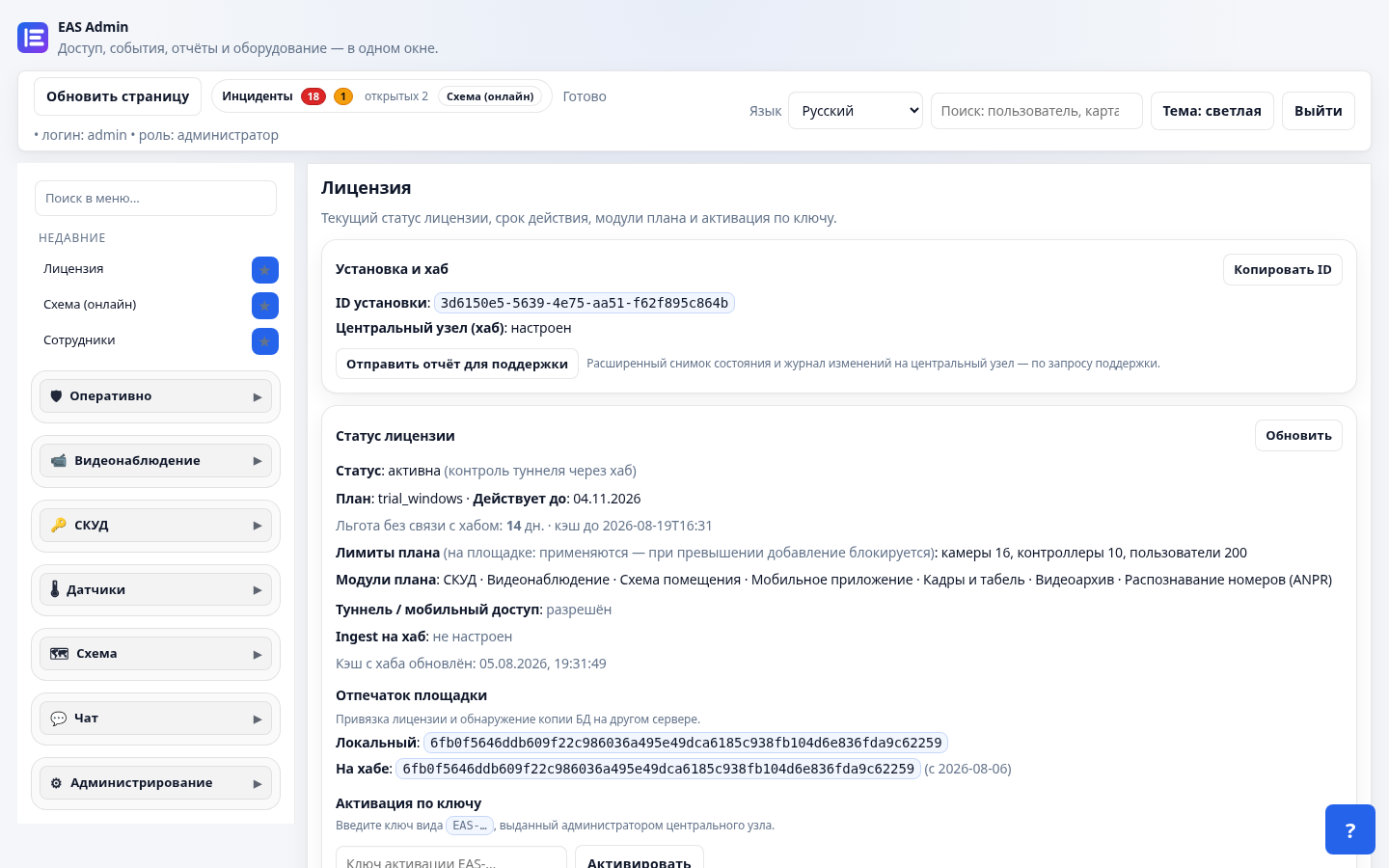
Kadry z lab Windows (192.168.9.112): panel 1.61, usługi WinSW.
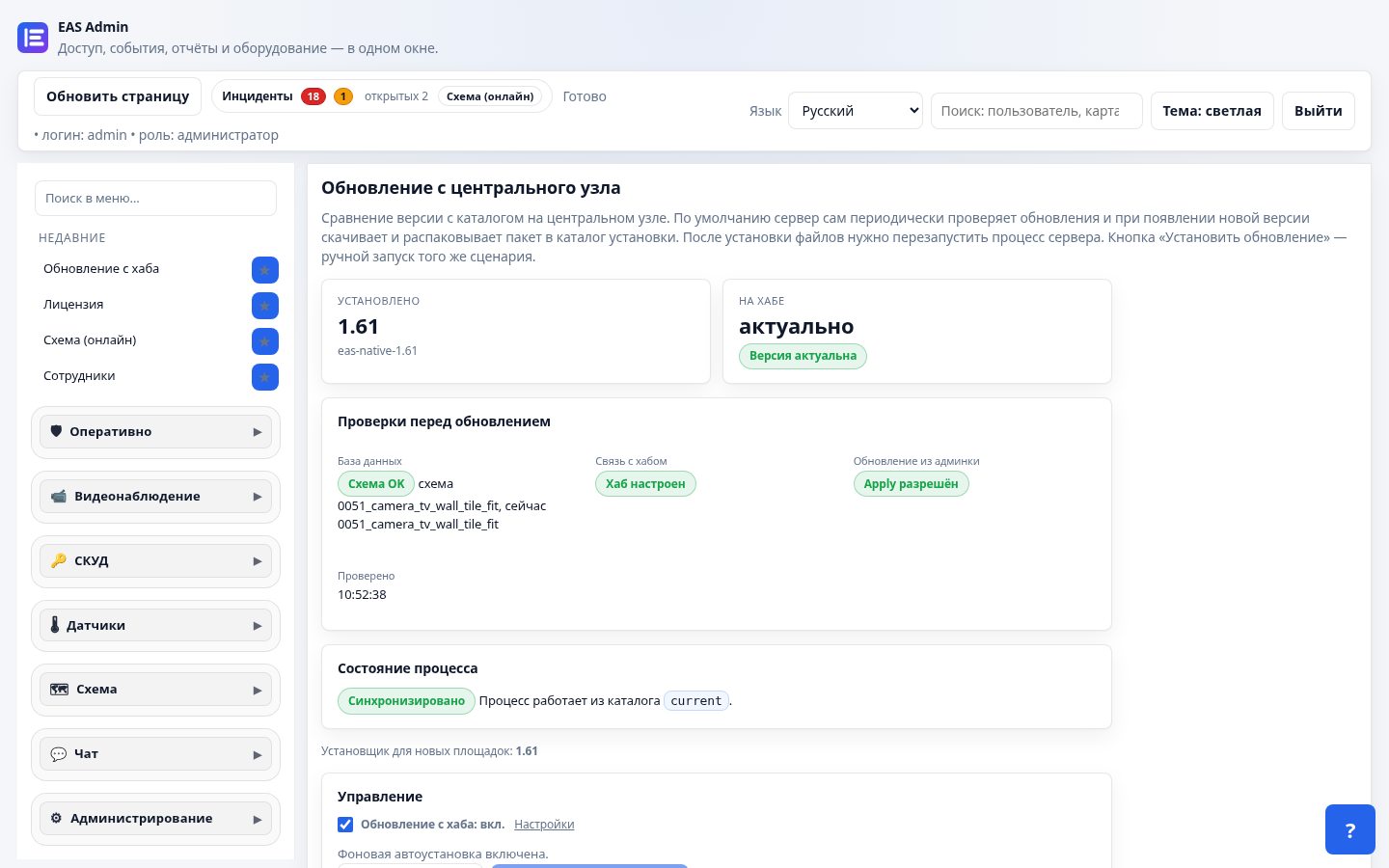
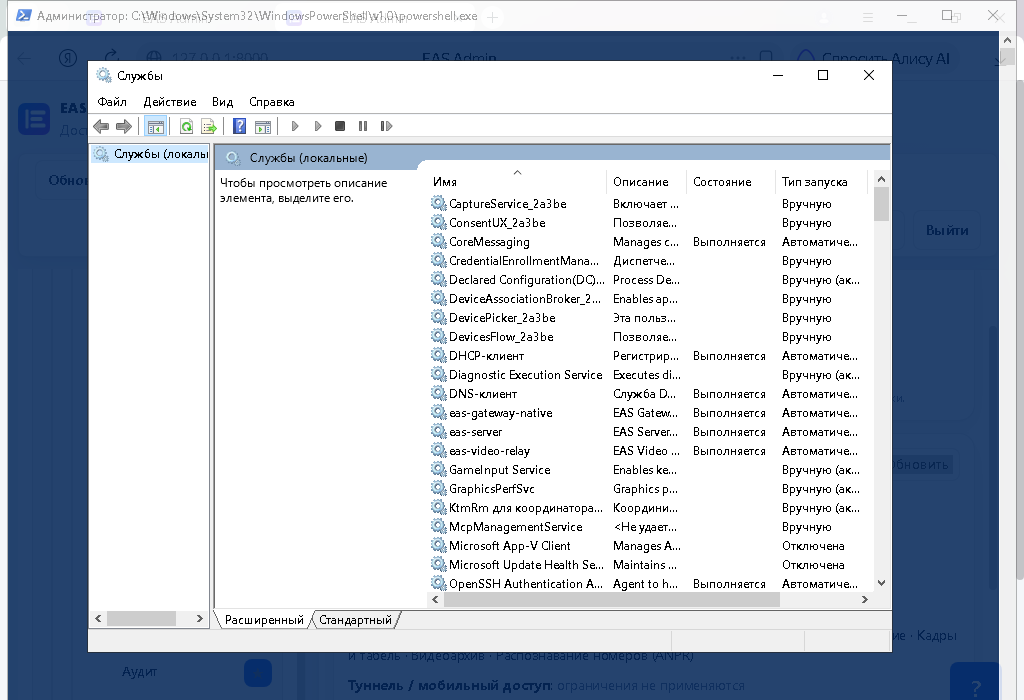
If IT already runs Windows Server, install EAS with the GUI wizard — no separate Linux box just for the guard UI.
No thick Windows ACS client: security and HR use Chrome/Edge from any PC on the LAN.
One UI for passages, cameras, and the floor plan — same as Ubuntu and Astra.
The key is OS-bound: activates only on Windows Server. No credit card.
Download the installer from the EAS hub. For sites without internet — use the offline package with bundled dependencies.
Windows Server with a GUI. Install via setup.exe; lean/offline packages are on the hub.
No. The admin is a web UI in the browser. Guards work from any PC on the network.
On Windows Server, Home Assistant runs only on a separate Linux machine; EAS uses IP + token. There is no on-box HA on Windows.
No. Trial keys are OS-bound: a Windows key activates only on Windows Server.
90-day key and setup.exe from the hub — no credit card.