Windows Server · EAS 1.68
EAS trial on Windows Server
Request a 90-day key and download the installer. The admin opens in the browser after setup. สาธิต·ACS บน Ubuntu·ACS บน Astra Linux.ACS บน Astra Linux·Blog guide·สาธิต.ACS บน Windows Server·ACS บน Ubuntu·สาธิต.
More about install: ACS บน Windows Server.
Windows track: 90-day key, activates only on Windows Server.
Windows trial key (90 days)
Enter a work email — the key is emailed and activates only on Windows Server.
The key has been sent by email.
Check email (and Spam). Admin → License → paste the key. Term: 90 days from activation.
The key is also available in your personal account - log in using the same email. — เข้าสู่ระบบ.
Download the installer
We recommend setup.exe. If the server has no internet — use the offline ZIP.
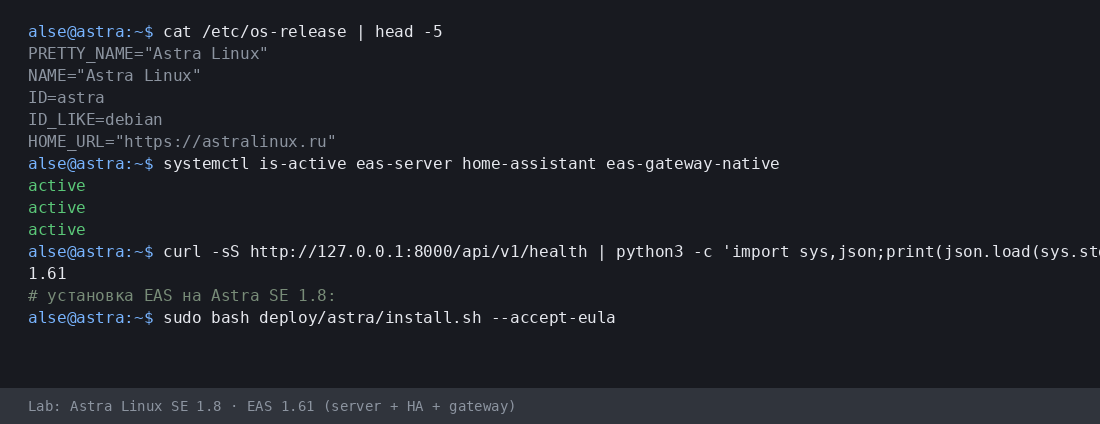
- Copy the command for IT or run it yourself on Astra SE 1.8 with internet access.
- The command downloads eas-native from the hub and runs deploy/astra/install.sh (no Ubuntu mirrors).
- Open http://<server>:8000/admin and paste the trial key on the License tab.
More:ACS บน Astra Linux·Blog guide.
- ดาวน์โหลดสคริปต์ติดตั้ง Astra (.sh)
- ดาวน์โหลดแพ็ก EAS (.tar.gz) ออนไลน์ · online install — needs OS mirrors / usually PyPI
- ดาวน์โหลด fat ออฟไลน์ Linux/Astra (.tar.gz) · no PyPI; OS apt mirrors still needed
- Download setup.exe · GUI wizard
- Download offline ZIP · no PyPI
- Download setup.exe to an admin PC or the server.
- Run the wizard, wait for EAS services, open http://localhost:8000/admin.
- Paste the trial key on the License tab.
Product page:ACS บน Windows Server.
Version 1.65 · Windows Server · 90-day trial · Telegram support
ก่อนติดตั้ง
- คีย์ทดลองผูกกับระบบปฏิบัติการ: Ubuntu (30 วัน), Astra (90 วัน) หรือ Windows (90 วัน) คีย์ระบบอื่นเปิดใช้ไม่ได้
- Windows: setup.exe and offline ZIP — /download/windows/. Ubuntu/Astra: .sh, online .tar.gz, and offline fat — /docs/ and /docs/install/. Fat is shared for Ubuntu and Astra.
- บน Windows Server ให้รัน Home Assistant บนเครื่อง Linux แยกเท่านั้น (ใน EAS ใส่ IP และโทเคน) ไม่มี HA บนเครื่อง Windows เดียวกัน
- บน Astra โหมด advanced EAS ทำงานคู่กับ MIC ได้หลังเตรียมเซิร์ฟเวอร์กับวิศวกร นี่ไม่ใช่การรับรองและไม่รองรับ MRD
ติดปัญหาตอนติดตั้ง?เขียนใน EAS Support— คำถามและข้อผิดพลาดตามภาษา ฟรี
เวอร์ชันปัจจุบัน · 1.68
EAS 1.68· patch 1.68· mobile 0.5.67· TV Wall 0.5.43
ไพลอตขั้นต่ำ
- Open EAS Admin — http://<server>:8000/admin (login in /etc/eas/eas.bootstrap.credentials)
- License tab — paste the trial key and click Activate
- Add a ZKTeco C3 controller — Equipment section
ภายหลัง (ถ้าต้องการ)
- Home Assistant and sensors — when you need telemetry on the floor plan
- Mobile app — APK on the EAS hub
- Updates — Administration → Hub update
Detailed instructions with screenshots — in the EAS docs. เอกสาร.Lost your key? Personal account. เข้าสู่ระบบ.